

Use OneDrive settings to manage your accounts, backup, notifications, and sync preferences. Available settings vary by app and account type. Choose the tab for your OneDrive app.
Note
If you sign in with a work or school account, some settings might not be available. Contact your IT admin for help.
How to access OneDrive settings in Windows
Select the blue or white OneDrive cloud icon in the Windows taskbar notification area.
Tip
- If the icon is hidden, select the Show hidden icons arrow
 next to the notification area.
 - If OneDrive isn't running, select Start, enter OneDrive in the search box, and select OneDrive in the search results.
- If you still don't see the icon, see I can't see any OneDrive icons.
- If the icon is hidden, select the Show hidden icons arrow
Select Help & Settings (the gear icon
 ), and then select Settings.
OneDrive settings opens. If you have both a personal account and a work or school account, open the cloud icon for the account you want to manage. Each account has its own settings.
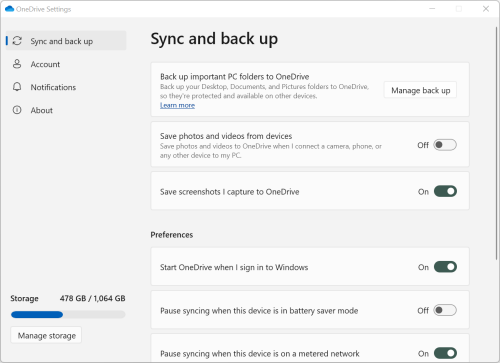
The settings window shows your storage usage and includes Manage storage.
Sync and back up
Back up important PC folders to OneDrive. Your PC's Desktop, Documents, and Pictures folders might not be automatically included in OneDrive. Select Manage back up to choose folders. For prerequisites and the effects of changing folder backup, see Back up your folders with OneDrive.
OneDrive personal users can also include Photos and videos and Screenshots folders in their OneDrive collection.
Use Preferences to choose how OneDrive behaves at startup, when your device is in battery saver mode, or when you're connected to a metered network (hotspot).
Advanced settings include:
- File collaboration which controls the sync direction of your files and enables you to work on files with other people at the same time. To ensure AutoSave works best, keep this turned on.
- Adjust the Upload and Download rates to limit the bandwidth OneDrive uses. For work or school accounts, your IT admin might set these limits.
- Files On-Demand helps you save space on your computer. See Save disk space with OneDrive Files On-Demand for Windows.
Account settings in Windows
- You can Unlink or Add another account but you can only have one personal account active on each computer.
- Select Choose folders to choose which OneDrive folders sync to your computer. For details and the effects of clearing a folder, see Choose which OneDrive folders to sync to your computer.
- Change your Personal Vault auto-lock time.
Notifications
- Turn on or turn off Notifications for some events.
About OneDrive in Windows
- OneDrive info includes your device ID and version number. No personal information is shown here. Quoting your unique OneDrive Device ID when contacting support helps support agents assist you more efficiently. Selecting the version number shows you the OneDrive release notes.
- OneDrive Insider program offers you a chance to get prerelease versions of OneDrive.
Other OneDrive options in Windows
For pause, resume, close, and recycle bin options, see Other OneDrive desktop options.
 ) to open the menu, and then select Preferences.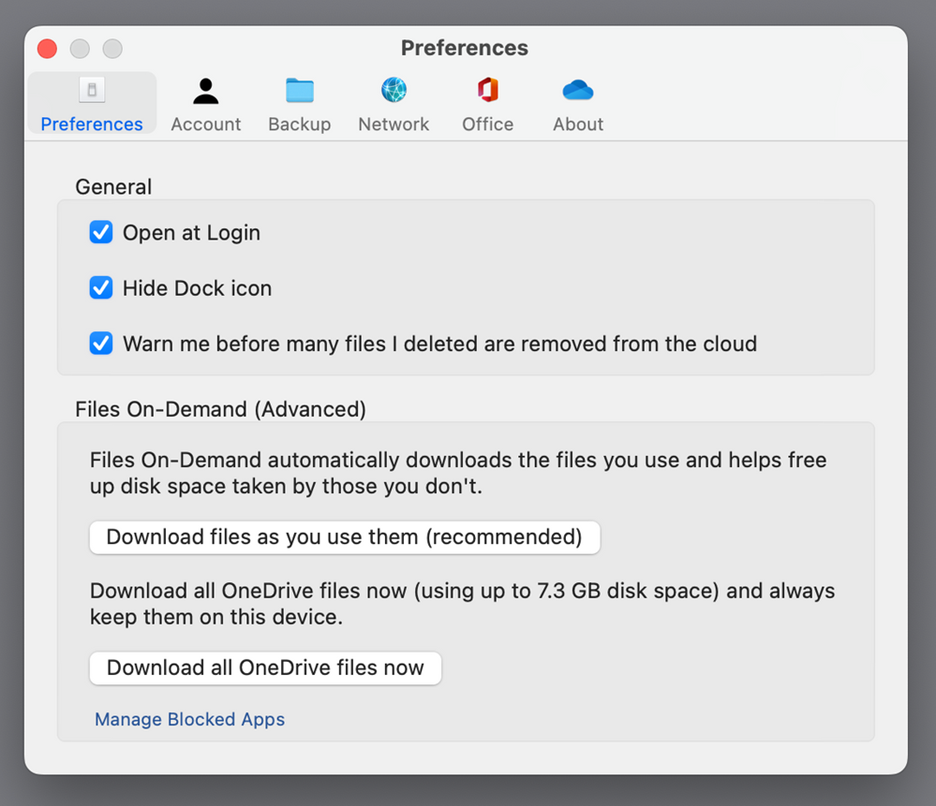
 .
.Other OneDrive desktop options
These options apply to the OneDrive sync app on Windows and macOS.
- Pause or resume syncing: Follow How to pause and resume OneDrive sync to choose a pause duration or resume syncing.
- Close OneDrive: Select the OneDrive cloud icon in the Windows notification area or macOS menu bar, select Help & Settings (the gear icon
), and then select Close OneDrive. You can still access your files and folders online at onedrive.com.
- Open the online recycle bin: Select the OneDrive cloud icon in the Windows notification area or macOS menu bar, and then select Recycle bin
 . For recovery steps, see Restore deleted files or folders in OneDrive.
Learn more
Not sure which version of OneDrive you're using? Read Which OneDrive app do I have?
Sign in to access your privacy settings and review your activity.
Need more help?
Account support. For help with your Microsoft account and subscriptions, visit Account & Billing Help.
Technical support. For technical support, select Contact Microsoft Support below, enter your problem and select Get Help.
Mobile users can contact Support by opening the OneDrive app and gently shaking your device.
Community support. Communities help you ask questions, give feedback, and hear from experts with rich knowledge. Ask the Microsoft Community. Do not disclose personal or sensitive information in public forums.