
Student AI Guidelines let you communicate clear expectations about AI use for each assignment. For assignments where AI use is allowed, you can also choose whether eligible students open the Study and Learn Agent or Microsoft Copilot from the assignment.
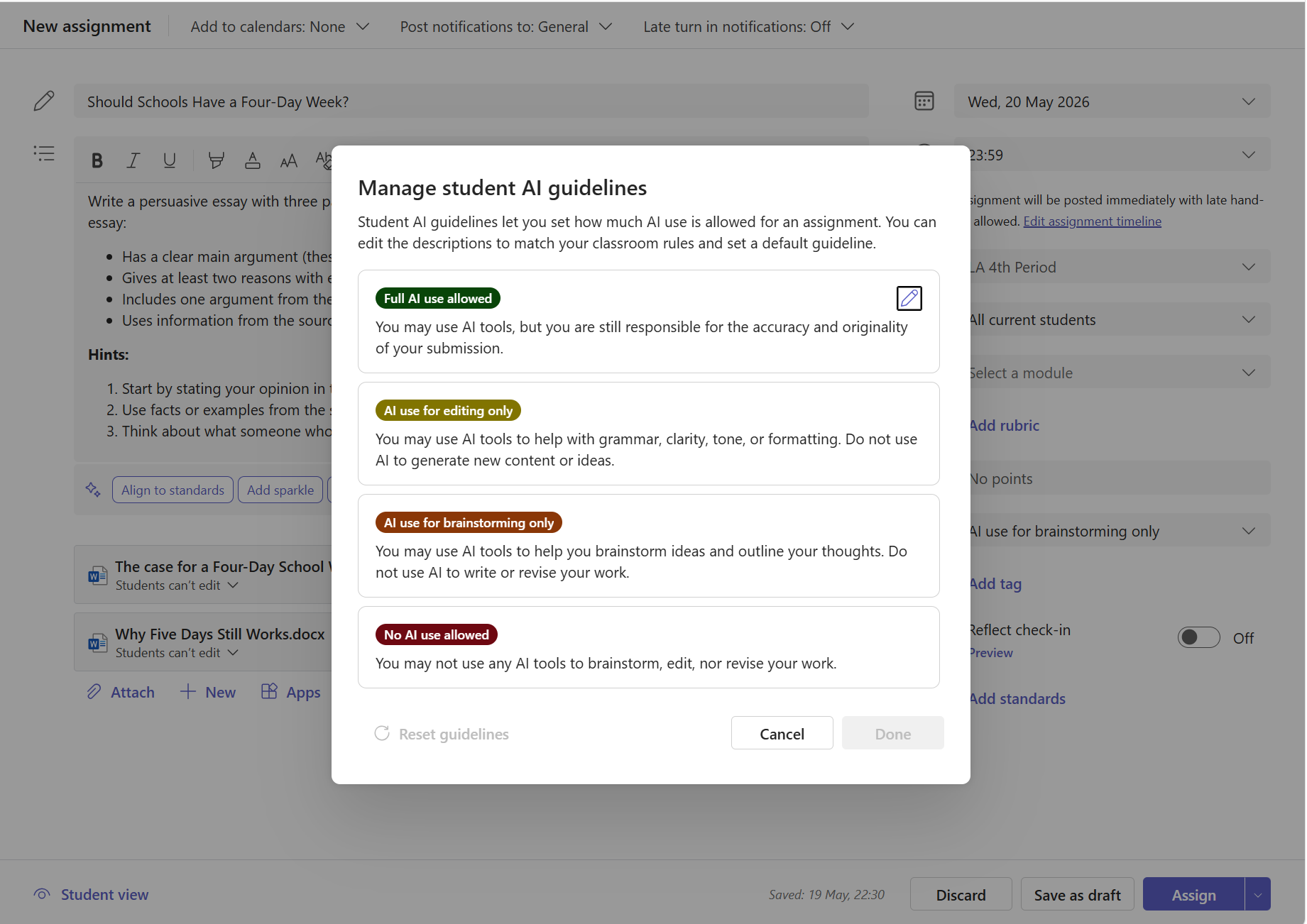
Set an AI guideline on a new assignment
In your class team, select Assignments.
Select New assignment and fill in the assignment details.
On the right side of the assignment, select the Set AI guidelines dropdown.
Choose a guideline level:
- Full AI use allowed — Students may use AI tools, but they're still responsible for the accuracy and originality of their submission.
- AI use for editing only — Students may use AI tools to help with grammar, clarity, tone, or formatting. They shouldn't use AI to generate new content or ideas.
- AI use for brainstorming only — Students may use AI tools to brainstorm ideas and outline their thoughts. They shouldn't use AI to write or revise their work.
- No AI use allowed — Students must complete the assignment entirely on their own without AI tools at any stage.
If you selected an AI-allowed guideline, use the AI Assistance section to choose an agent:
- Study and Learn guides students through questions, explanations, and practice activities. It uses the assignment title, instructions, and supported assignment resources as context. Educators don't add a starter prompt for Study and Learn.
- Copilot gives students access to general-purpose Copilot Chat. You can add an optional starter prompt, up to 1,000 characters, that appears in the student's chat when they open Copilot.
To check the selected experience before publishing, add an assignment title and select Try it out. This preview is available to educators and doesn't change the student assignment.
Select Assign to post the assignment.
Tip
Study and Learn Agent is selected automatically unless your class is configured to use Copilot as the default. You can change the agent for an individual assignment.
If no guideline is set, students see the assignment without any AI guidance — the same experience as before this feature.
Change or remove a guideline
- Open the assignment and select Edit assignment.
- Select the Set AI guidelines dropdown.
- Choose a different level, or select No selection to remove the guideline.
- If you selected an AI-allowed guideline, confirm the agent in the AI Assistance section. If you choose Copilot, you can add or update the optional starter prompt.
- Save your changes.
What students see
When you set a guideline on an assignment, students see an AI guidelines section on the right side of their assignment view. The section shows:
- The guideline level name (for example, "Full AI use allowed") in color.
- A description of what is expected.
- For eligible students on an AI-allowed assignment, a button to open the agent you selected.
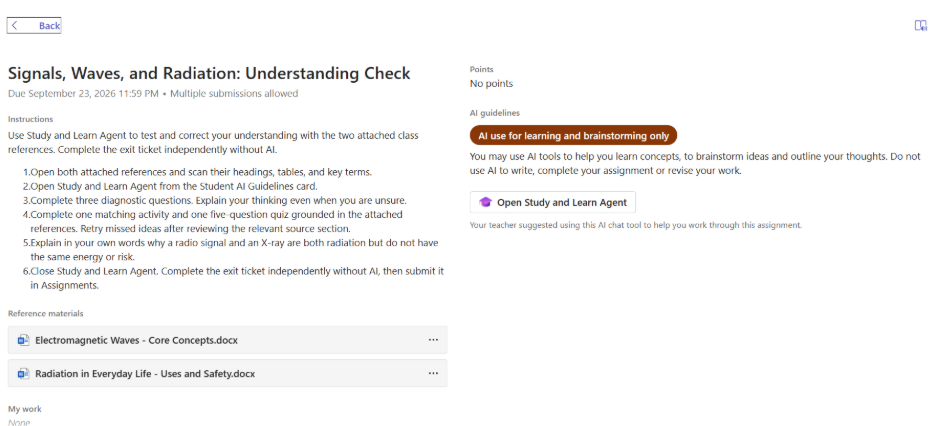
When you select Study and Learn
Students select Open Study and Learn to start a learning-focused conversation in Microsoft Copilot. The agent uses the assignment title, instructions, and supported resources as context. It can guide students through scaffolded conversations and activities such as flashcards, quizzes, matching, and fill-in-the-blank exercises.
Study and Learn is available in the Microsoft Copilot app on the web and Windows desktop. On mobile, students can see that Study and Learn is assigned, but they need to use the web or Windows desktop app to open it.
When you select Copilot
Students select Open Copilot to start a Copilot Chat conversation. If you provided a starter prompt, students see it on the assignment and Copilot opens with the prompt pre-filled. If you didn't provide a starter prompt, Copilot opens without one.
Assignment instructions and resources aren't automatically added to the Copilot conversation. Include the context students need in the starter prompt.
Preview the student experience
Before you assign, use Student preview to see the guideline level, description, and agent launch option. You can also select Try it out in the AI Assistance section to open the selected agent with the current assignment context.
Requirements and availability
Students must meet the following requirements to open Study and Learn Agent or Copilot from an assignment:
- Be at least 13 years old
- Have a Microsoft 365 Education A1, A3, or A5 license
- Have Copilot Chat enabled by their IT administrator
For learners ages 13 to 17, an IT administrator must enable Copilot Chat using the education age-gating controls. Students who aren't eligible still see the Student AI Guideline, but they don't see the AI assistance launch option.
Assigning Study and Learn or Copilot is supported on standard assignments. It isn't supported on quiz assignments or Learning Accelerator assignments.
Things to keep in mind
- Student AI Guidelines are informational. They communicate your expectations but don't technically block students from using AI tools outside of the assignment.
- You can customize the title and description text for each guideline level to match your school AI policy. See Manage Student AI Guidelines in Microsoft Teams for details.
- Your class can have a default guideline and agent, but you can change both for an individual assignment.
- Study and Learn can use supported assignment resources as learning context. Very large, protected, or unsupported resources might not be available to the agent.
- Educators don't receive students' Study and Learn conversations or activity summaries as part of this release.