

Join a specific team
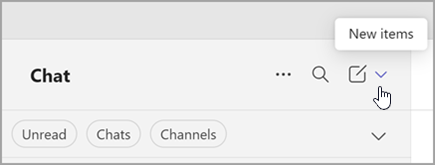
On the left side of the app, select Chats
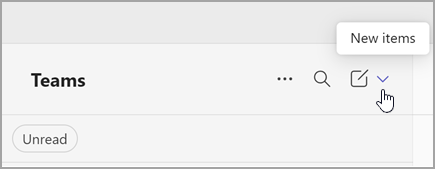
 . If using the separate view, select Teams
 .
. Select New items from above your list of chats and channels.
Select Join team
 .
. In the Type to search box, type the name or topic of the team.
Point to the team tile to reveal and select Join team.
You may immediately join a public team, but you must ask to join a private team and then wait for the owner's approval to access the team and its channels.
Note
If a team owner hasn't enabled discoverability for their private team, you won't be able to find it by using search. You'll need to contact them directly to ask to join.
You can also join a team with a code.
Ask to add a member
To add someone to a team that you're already a member of:
Go to the team in your Teams and channels list, then select More team options > Add member
 .
.Type the name of one or more people, and then select Add. Team owners will receive an alert that they have a pending request.
 . From there, you can create a new team, browse existing teams to join, or join a team with a code (if you have one).